
Welcome to the Bigman Geophysical Quick Start Series. This post is part of our ongoing collection of free, field-ready guides designed to get your team up and running without the fluff. We believe in "frictionless training"—proving that when you pair intuitive hardware setups with live-visual software, you drastically reduce ramp-up time and minimize human error. These guides are built to get your crew scanning with confidence from day one, and Bigman Geophysical offers affordable online courses and in-person workshops to expand on the free knowledge base to take your team's field competency to the next level.
Instant 3D Mapping: A Quick Start Guide to the Leica DSX GPR
For decades, traditional Ground Penetrating Radar (GPR) required operators to spend months learning how to read complex "wiggles" and radar hyperbolas on a screen. If you misread the raw data, you risked striking a utility.
The Leica DSX changes the game entirely. Built specifically for utility avoidance and mapping, it features a 600 MHz antenna paired with highly intelligent DXplore software. Instead of forcing you to decipher raw radar waves, the system uses advanced mathematical algorithms to automate data analysis, converting your scans into an interactive 3D utility map right there in the field.
If you want to take your utility locating from zero to hero, here is your step-by-step quick start guide to deploying the Leica DSX.
Step 1: Unfolding and Physical Assembly
The DSX features a highly portable, folding design that makes it easy to transport and deploy in narrow or awkward spaces.
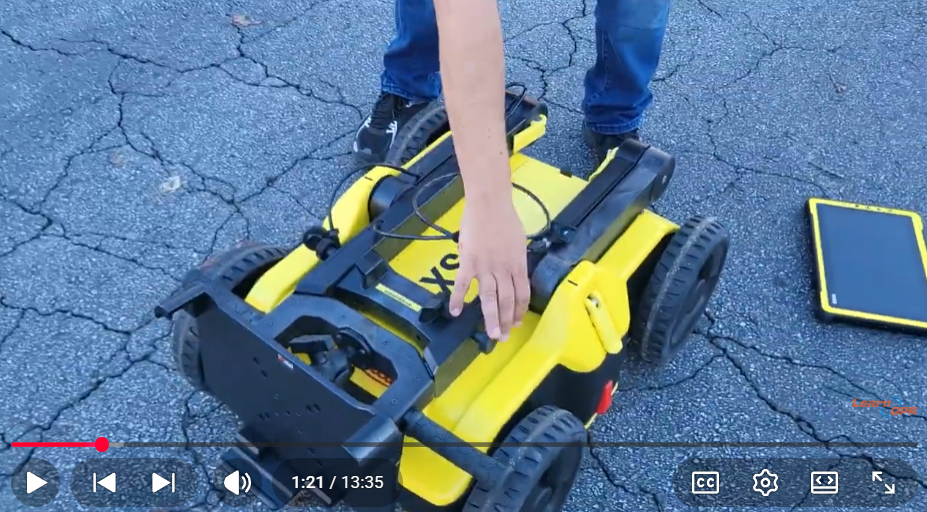
Unfold the Chassis: Release the inner cam levers to unfold the upper handle legs, aligning the visual markers before locking them back down. Do the same with the outer cam levers to raise the handle to a comfortable height.
Mount the Controller: Secure your CT1000 tablet into its rugged cradle using the double-socket RAM ball mount, adjusting the tilt to prevent glare. Connect the data cable from the cart to the tablet.
Insert the Battery: Open the sealed battery compartment on the nose of the cart, slide the primary Li-ion battery in facing downward, and tighten the secure thumb screw.
Step 2: System Boot and Project Setup
Because the DSX relies heavily on software automation, getting your project parameters right inside DXplore ensures the automated algorithms can accurately map your targets.
Power On: Turn on the DSX cart and your tablet, then launch the DXplore app.
Create a Project: Start a new project file and specify your site location.
Choose Your Mode: Select Quick Scan if you just want to do a fast sweep for a single anomaly, or choose Grid Scan to map out a comprehensive, multi-directional 3D grid area.
Integrate Positioning (Optional): If you are using a surveyor package, ensure your Leica GNSS antenna or total station is synced up via Bluetooth to georeference your data instantly.
Step 3: Scanning and Real-Time 3D Slicing
Once your settings are confirmed, place the unit on your starting mark and roll. The DSX reads distance accurately via high-precision encoders built right into the wheels.
Roll Smoothly: Push the cart along your designated path. The software will guide you in real time to ensure you maintain consistent spacing and capture optimal coverage.
Toggle Live Tomography: As you scan, you don't have to guess what you are rolling over. Use the touch screen to slice through the subsurface data in 3D right in the field.
Visualize the Target: You can peel back layers of the earth on your screen to see your utilities rendered dynamically relative to your cart's current position.
Pro-Tip for Intuitive Mapping: If the raw radar waves feel cluttered, toggle the software layers to turn down the raw "tomography" background. This will leave you looking at just the cleanly generated line paths where the algorithm has successfully mapped out your buried pipes or conduits.
Step 4: Verification and 3-Second Reporting
Before you pack up the cart and clear the site for the excavation crew, you can generate professional-grade deliverables on the spot.
Mark Utilities: Use the software to confirm or manually adjust the automatically detected utility lines, tagging them with color-coded identifiers.
Generate an Instant Report: Tap the export button to create a field report. The DXplore software processes the data instantly, churning out a clean PDF summary containing your profile data, coordinates, and interpretations in about three seconds flat.
Export CAD/BIM Data: If you require office processing, export your data in formats like DXF or SHP, allowing for seamless integration into your engineering drawings or machine control systems.
See the Leica DSX in Action
Want to watch a live walkthrough of how to navigate the 3D slicing screen, filter out background clutter, and export a PDF report directly from the field? Watch the full video tutorial below by LearnGPR to see the Leica DSX utility detection solution in motion.